

Last updated on January 16th, 2026 at 01:09 pm
Treating your documentation as code is becoming more popular because it allows documentation to be version-controlled, reviewed, and managed like code. This approach is referred to as “Documentation as Code” and has many advantages, including:
- Save your documentation in the same code repositories.
- You can rely on Git to version your documentation and make it easier to track changes.
- You can edit your documentation using the IDE you use for development.
- Automate documentation updates.
- You can generate your documentation in PDF or other formats for business and other non-tech stakeholders.
Which markup language to use?
With the Documentation as Code approach, documentation is written in plain-text markup languages like Markdown or AsciiDoc, which are easy to read and write. The documentation files are then stored in a version control system, such as Git, alongside the code.
Markdown
Markdown is a lightweight markup language for creating formatted text using a plain-text editor (Wikipedia).
The following screen shows on the left a simple text with Markdown language and how it is formatted and displayed on the right side of the screen.
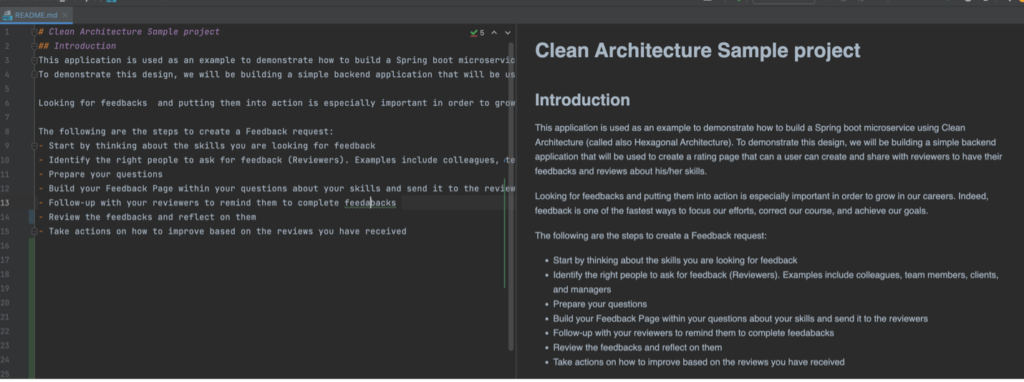
Markdown is a lightweight markup language that is easy to read and write, but has limited syntax for more complex document formatting. To add more advanced features to your Markdown documents, you can use extensions or variants of Markdown.
AsciiDoc is another alternative to Markup worth considering for its rich features and more comprehensive syntax.
AsciiDoc
AsciiDoc is a plain-text markup language for writing technical content. It is more powerful than Markdown for writing more complex documents. AsciiDoc files can be translated into many formats, including HTML, PDF, EPUB, and MS Word.
In the following sections, I will show you how to use AsciiDoc to document your architecture.
First, make sure to install an AsciiDoc plugin on your preferred IDE. I am using this plugin in IntelliJ and this extension in VS Code.
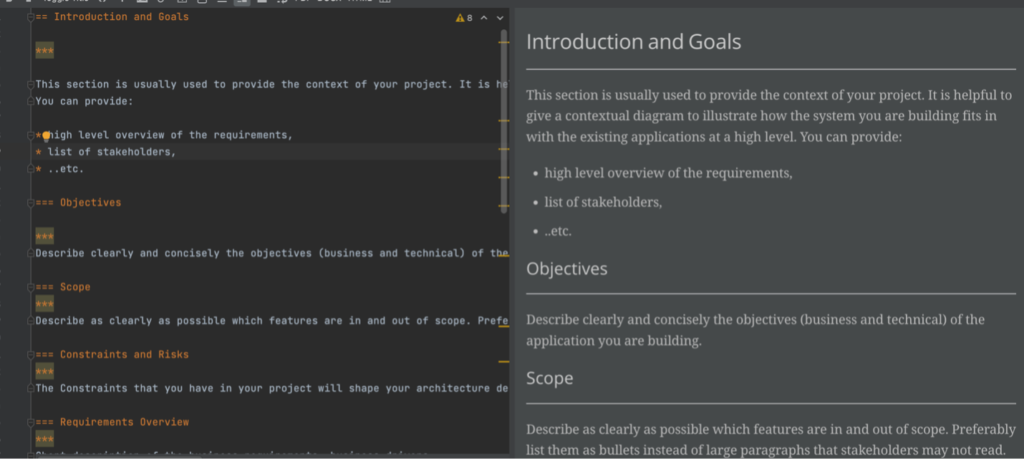
The following is a simple example of an architecture document written in AsciiDoc.
Use an existing open-source template
Instead of creating your AsciiDoc file from scratch, you can use one of the free open-source templates provided by arc42 as a starting point for your documentation.
The arc42 template includes a set of standard sections and subsections that cover various aspects of software architecture, including system context, functional and non-functional requirements, architecture decisions, and more.
You can download Arc42 templates in different formats, including AsciiDoc and Markdown, here.
Modularize your documentation
Instead of having one large document in Asciidoc, you can create several small modules and reference them from the main document using the “include” directive.
This approach allows you to break down a large document into smaller, more manageable pieces and reuse content across multiple documents.
Your documentation, composed of modules, is more organized, consistent, and reusable, saving time and improving your documentation’s quality over time.
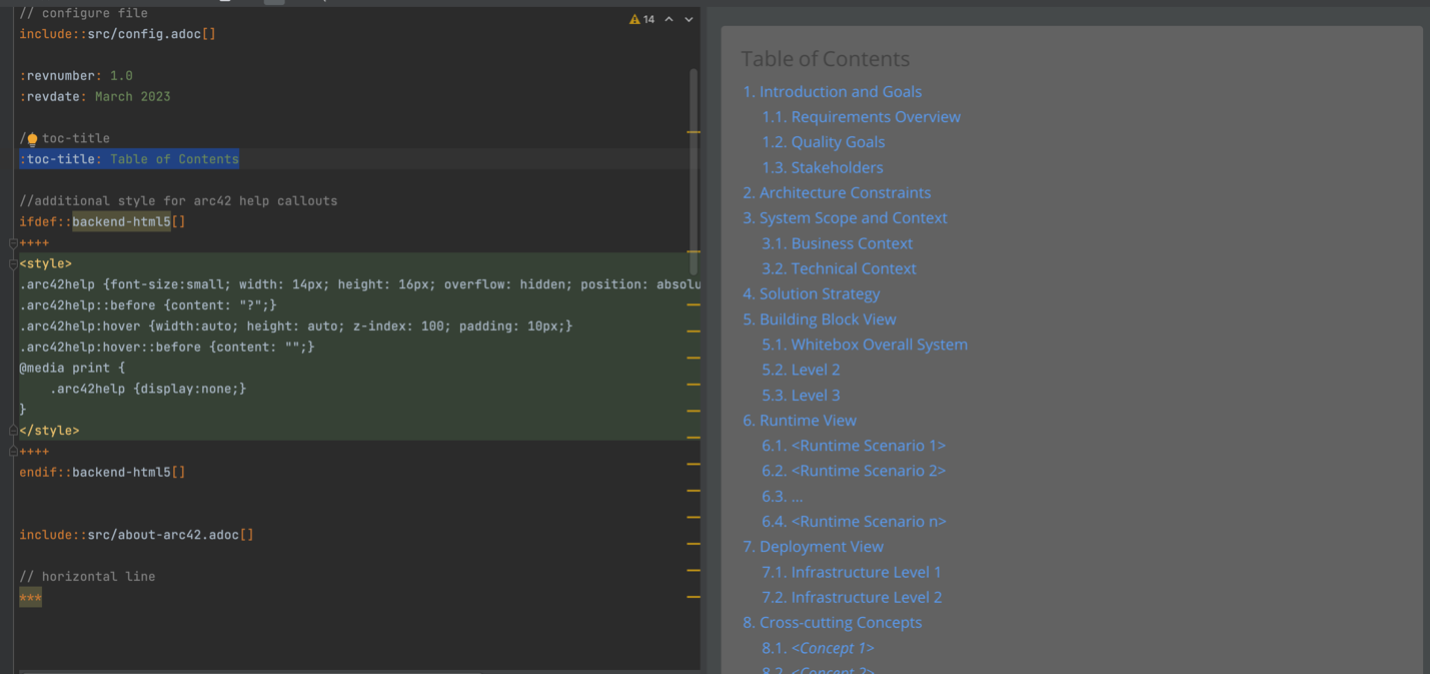
You can download an example of an asciidoc doc using modules (arc24) here and adapt it to your needs.
How to use and include diagrams?
Similar to the documentation, several text-based diagramming tools allow you to create diagrams using plain text, such as PlantUML. These tools use a domain-specific language (DSL) to describe diagram elements and relationships and generate an image or vector file from that description.
This makes it easy to store diagrams along with your documentation in a version control system and to track changes to the diagrams over time.
PlantUML can be integrated into popular IDEs such as Visual Studio, IntelliJ IDEA, and Eclipse. These IDEs include plugins that let you create and view PlantUML diagrams directly within the IDE.
In addition, depending on the diagrams you want to generate, PlantUML requires a working version of GraphViz, which you can download here.
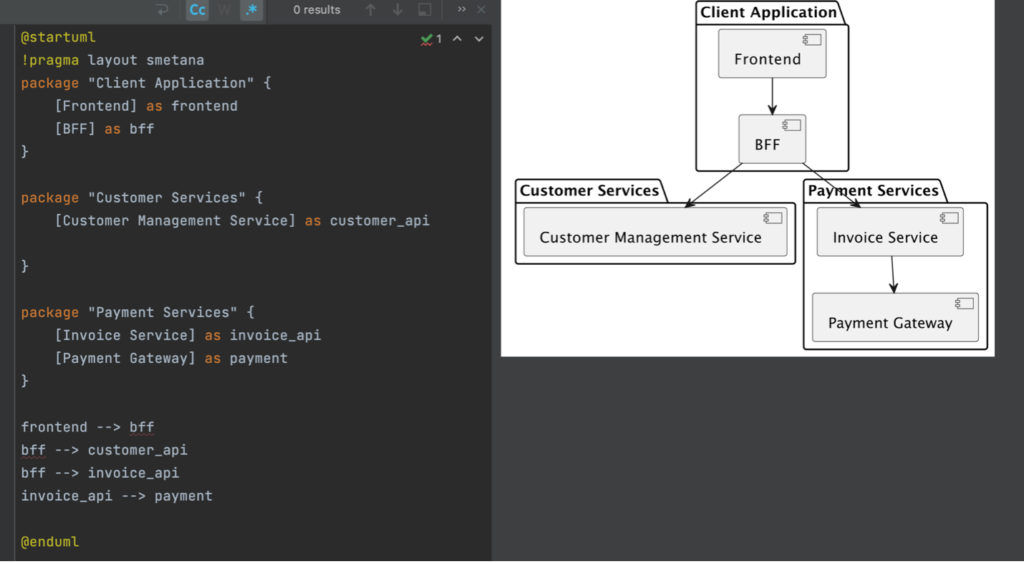
The following is an example of creating a component diagram using PlantUML.
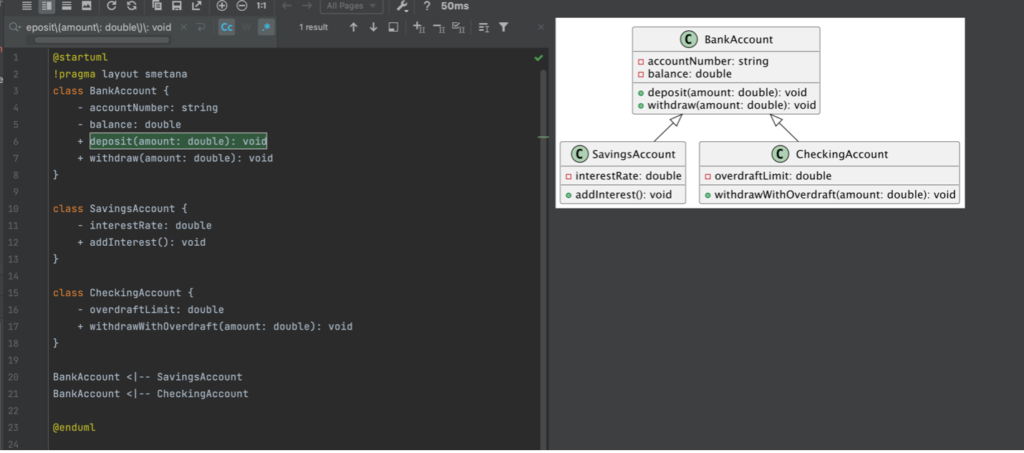
The next diagram shows how you can create a simple class diagram.
In addition to PlantUML, several other popular tools and text-based diagramming languages can generate diagrams in your documentation, such as Structurizr and Asciidoctor Diagram.
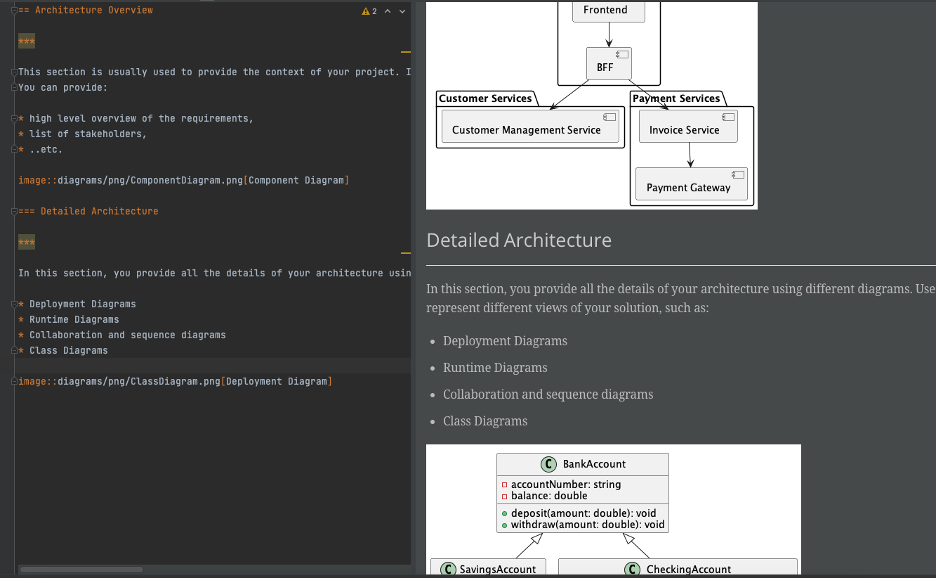
But how do you insert an image in your AsciiDoc document?
The answer is simple. All you need to do is generate your image from the diagram and insert it into your document, as illustrated below.
How to generate PDF, HTML, and other formats from your AsciiDoc?
One advantage of treating documentation as code is that it can be automatically generated into various formats, such as HTML and PDF. This can make it easier to maintain documentation and ensure it is always up-to-date and consistent with the application you are building.
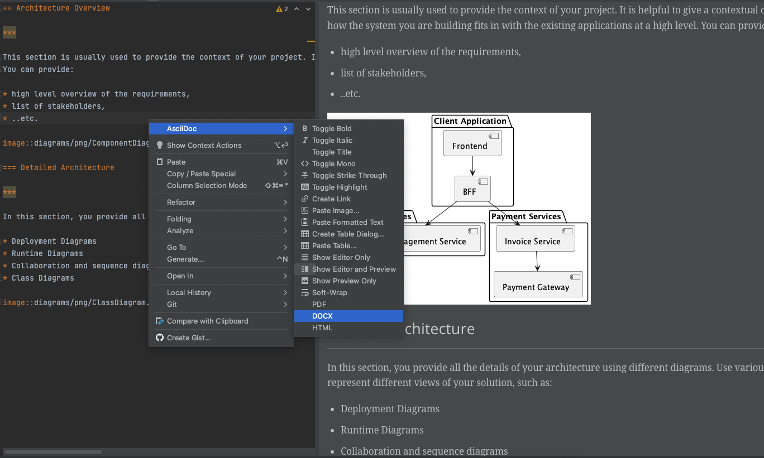
You can generate HTML, PDF, MS Word documents, and other formats from your AsciiDoc documents using AsciiDoctor (already installed when you have installed the asciidoc plugin on your editor). You can see how easy it is to generate documents in the format you want from IntelliJ.
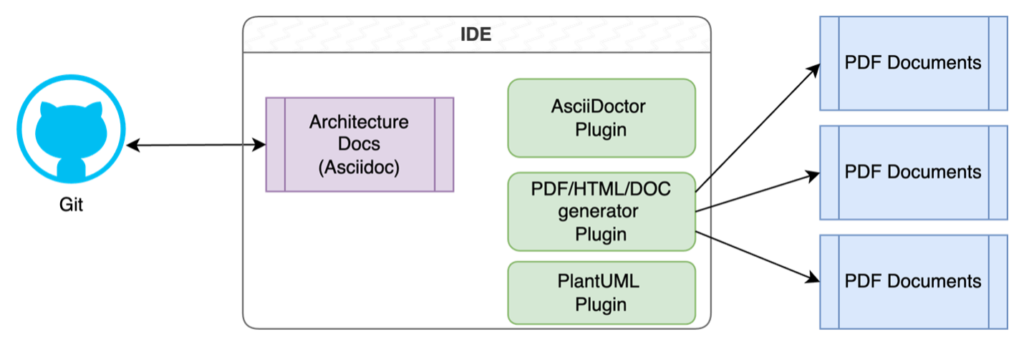
The following diagram summarizes the different parts of this approach.
Conclusion
Treating documentation as code can improve its quality and consistency, reduce maintenance overhead, and make it easier for architects and developers to collaborate on documentation changes. And you can even automatically generate documentation as part of your CI/CD pipeline, ensuring that it is always up-to-date and consistent with the application you are building.
Examples in this post are available on GitHub.